
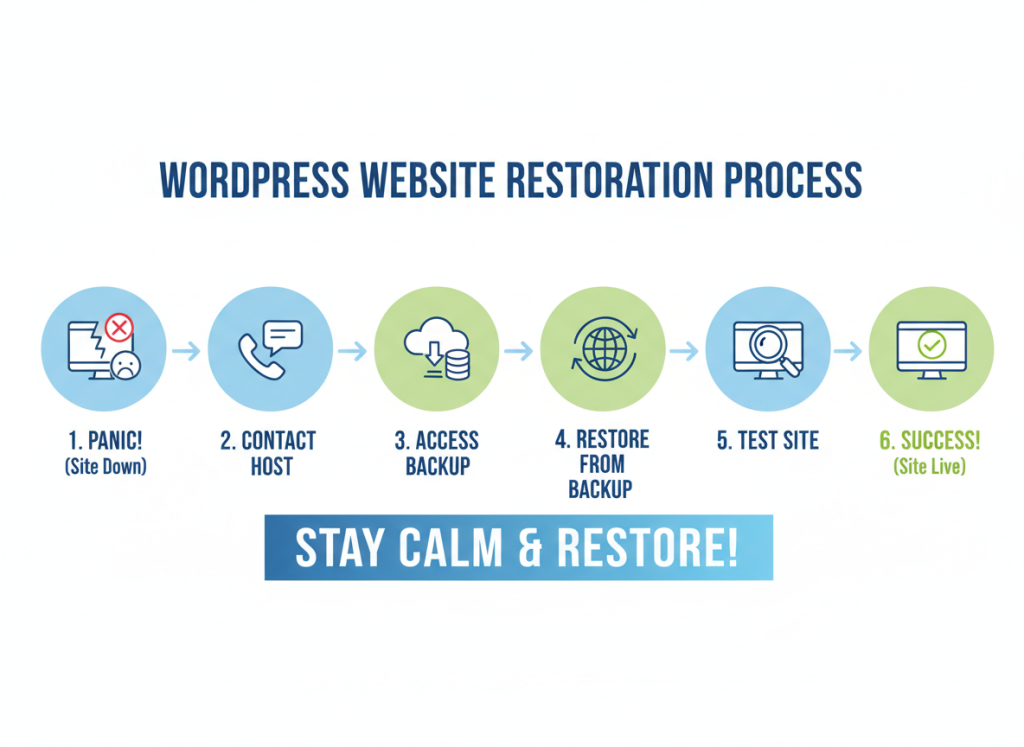
If your WordPress site just vanished, exploded, turned into a white screen, or got hacked into oblivion, take a breath with me for a second.
Actually, take two.
I’ve been in the WordPress trenches for more than 20 years. I’ve seen entire sites wiped out by a bad plugin update, clients accidentally delete their own databases (yes, really), hosting companies bungle migrations, and malware chew through files like digital termites. In almost every case, the first reaction is the same:
“I’ve lost everything.”
The good news? In the overwhelming majority of cases, that’s not true.
“If you’ve ever taken a backup—or your host has—you probably haven’t lost your site. You’ve just lost access to it temporarily.”
This guide is your calm, experienced WordPress friend walking you step-by-step through the fastest way to get your site back online—even if you’re panicking, even if you’re not “technical,” and even if you’re not sure you ever set up WordPress backups properly.
Step 0: Panic for 10 Seconds… Then Switch to Recovery Mode
I’m not going to pretend this isn’t stressful. It is. I’ve watched business owners stare at blank screens knowing their entire income depends on that site. So yes, you’re allowed one short, focused panic moment.
Then we switch to recovery mode.
Here’s what we’re going to do:
- Figure out what actually broke.
- Identify what kind of WordPress backups you have (plugin, hosting, manual, none).
- Choose the fastest safe restore method based on that.
- Bring the site back online.
- Set up a proper backup strategy so this never feels this scary again.
Let’s take it one step at a time.
Step 1: Diagnose the Damage (It Might Be Less Than You Think)
Before you start smashing restore buttons at random, you need to know what actually failed. Many site owners assume everything is gone, when in reality it’s just:
- A broken plugin or theme
- A hacked index.php
- An overwritten .htaccess file
- A failed update that corrupted a few files
Start with these quick checks:
1.1 Check your site in an incognito window
Sometimes caching or local browser issues make things look worse than they are. Open your site in a private/incognito window or a different browser.
1.2 Check your WordPress admin area
Try logging into /wp-admin or /wp-login.php. If you can log in, the database is probably fine and your restore may only require rolling back files or a plugin.
1.3 Check your hosting panel
Log in to your hosting dashboard (cPanel, Plesk, or a custom panel). Look for:
- Your database entry still existing in “MySQL Databases”
- Your site files still present in
public_htmlor your site directory - Error logs that mention a specific plugin or theme
If files and databases are still there, you’re probably dealing with a corruption or hack—not a full wipe. That’s good news.
Step 2: Identify What Kind of Backup You Have (You Probably Have One)
Now we need to figure out where your most recent backup lives. There are four main possibilities:
- You installed a WordPress backup plugin.
- Your hosting provider has automatic backups.
- You (or a developer) made a manual backup.
- You have no backup at all (we’ll still talk about what to do).
2.1 Check for Backup Plugins
Log into your hosting file manager or use FTP and inspect your wp-content/plugins folder. Look for any of these popular backup plugins:
If you can access the WordPress admin, go to Plugins → Installed Plugins and see if any of these are active.
If you find one—great. That’s the fastest restore path.
2.2 Check Your Hosting Backups
Even if you never installed a backup plugin, many hosts quietly create automated backups. Look in your hosting panel for sections labeled:
- “Backups”
- “JetBackup”
- “CodeGuard”
- “Snapshots”
- “Restore Manager”
Hosting documentation often helps too. Search your host + “backups”:
If your host offers one-click restore to a previous date, that might be your fastest recovery option.
2.3 Check Dropbox, Google Drive, or External Storage
A lot of backup plugins store backups offsite in:
- Google Drive
- Dropbox
- Amazon S3
- OneDrive
If you used UpdraftPlus or WPvivid, log in to those accounts and search for folders named “updraft” or “wpvivid”. Those backup zip files are gold.
2.4 No Backup? Don’t Give Up Yet
If you truly don’t have a backup plugin, hosting backups, or manual backups, recovery is harder—but not impossible. Sometimes:
- The host has a backup even if it’s not visible in the panel—so ask support.
- Google has cached versions of your content you can reconstruct manually.
- Your old developer or agency may still have a backup lying around.
But let’s start with the best-case scenario: you do have a backup somewhere.
Step 3: Fastest Restore Path If You Have a Backup Plugin
If I had to choose the fastest, safest way to restore a broken WordPress site, I would always pick a dedicated backup plugin with a one-click restore feature.
Here’s how to handle restores with the most common plugins.
3.1 Restoring with UpdraftPlus
UpdraftPlus is one of the most popular backup plugins on the planet, and it has a simple restore flow.
- Log into your WordPress dashboard.
- Go to Settings → UpdraftPlus Backups.
- Scroll down to the “Existing backups” section.
- Pick a backup from before things went wrong.
- Click Restore and select what to restore:
- Plugins
- Themes
- Uploads
- Others
- Database
- Run the restore and wait for the confirmation message.
Pro tip: If the admin area is broken, you can reinstall a fresh copy of WordPress, install UpdraftPlus again, connect to the same remote storage, and then restore from the backup stored in Google Drive, Dropbox, etc.
3.2 Restoring with BlogVault
BlogVault is what I recommend for mission-critical sites. It maintains independent backups outside your hosting environment and lets you restore to any point in time.
- Log in to your BlogVault dashboard.
- Select the affected site.
- Go to the Backups tab.
- Pick a restore point from before the incident.
- Click Restore and choose:
- Same site (overwrite existing)
- Different site (for migration or staging)
BlogVault handles the heavy lifting remotely, which is why it’s beloved by agencies and pros dealing with hacked or resource-limited servers.
3.3 Restoring with WPvivid Backup
WPvivid Backup is a fantastic option, especially if you were already using it for backups and migrations.
- Go to WPvivid Backup → Backup & Restore.
- Scroll down to the backup list.
- Click Restore next to the backup you want.
- Follow the prompts and let the plugin handle the restore.
If the site is completely broken, you can restore from a remote backup by re-connecting WPvivid to your remote storage.
3.4 Restoring with Jetpack Backup
Jetpack Backup shines for dynamic sites like WooCommerce stores. It provides real-time backups and point-in-time restores.
- Log in to your WordPress.com / Jetpack dashboard.
- Find your site and click on Activity Log.
- Select a point in time before the issue.
- Click Restore to this point.
This can literally resurrect a store including recent orders that would be lost with daily-only backup tools.
Step 4: Fastest Restore Path Using Your Hosting Backups
If you don’t have a backup plugin—or you do, but you can’t access it—your next fastest option is usually your hosting provider’s backup system.
Every host is slightly different, but the basic flows are similar.
4.1 Using cPanel Backup Tools
If your host uses cPanel, look for:
- JetBackup
- Backup Wizard
- R1Soft Backups or similar
Typical process:
- Open the backup tool.
- Choose a backup date.
- Select what to restore:
- Files (home directory)
- Database (MySQL)
- Restore both files and database to the same date if possible.
Important: Restoring only files or only the database can create weird mismatches. When in doubt, restore both.
4.2 Managed WordPress Hosting Restores
If you’re on managed WordPress hosting (e.g., Kinsta, WP Engine, Flywheel, SiteGround’s managed plan), you’re in luck—these platforms usually have super simple restore options.
It’s usually as simple as:
- Open your site dashboard.
- Go to the backups/snapshots section.
- Select a backup before the problem.
- Click Restore.
Step 5: When You Have Only Manual Backups (or a Zip Somewhere)
Maybe a past developer sent you a backup zip. Maybe you manually exported your database via phpMyAdmin and downloaded your files via FTP. If so, you can still restore quickly—just a bit more hands-on.
5.1 Restoring Files from a Zip
- Log in to your hosting control panel.
- Open the File Manager or connect via FTP.
- Upload the zip file of your site to the correct directory (usually
public_htmlor a subfolder). - Extract the zip.
- Overwrite existing files if prompted.
5.2 Restoring the Database
If you have a .sql file:
- Open phpMyAdmin from your hosting panel.
- Choose the correct database for your site.
- Click Import.
- Upload the
.sqlfile and run the import.
If the database is totally corrupted, you may need to drop all tables before importing the backup.
Then check wp-config.php to ensure the database name, user, and password match.
Step 6: What If You Don’t Have ANY Backups?
Okay. Worst-case scenario. No backup plugin. No visible hosting backups. No manual backups. This is where most people start writing eulogies for their websites.
Don’t do that yet.
6.1 Ask Your Host Directly
Even if backups aren’t shown in your control panel, many hosting companies keep periodic snapshots for disaster recovery. Open a support ticket or live chat and ask:
“Do you have any full account or file/database backups of my site from the last 30 days? Even if it’s not visible in my panel, can you restore it or provide a download?”
I’ve seen hosts quietly restore “non-existent” backups more than once.
6.2 Recover Content from Google Cache or the Wayback Machine
If all else fails, you can often recover at least your content (posts, pages, copy) from cached versions of your site:
- Search cache:yourdomain.com in Google.
- Use the Wayback Machine to view older snapshots.
Is this fun? No. Is it fast? Also no. But it’s better than rewriting everything from scratch with no reference.
Step 7: After You Restore – Lock In a Real Backup Strategy
Once your site is back online (and it will be), the very next step should be making sure this nightmare is a one-time event.
Here’s a battle-tested backup strategy I recommend to most site owners:
7.1 Use a Reliable Backup Plugin
- UpdraftPlus for general sites
- BlogVault or Jetpack Backup for WooCommerce / dynamic sites
- WPvivid Backup for powerful free backups
7.2 Follow the 3-2-1 Rule
- 3 copies of your site
- 2 different storage types (e.g., server + cloud)
- 1 copy offsite (Google Drive, Dropbox, S3, etc.)
7.3 Automate Your Backups
Never rely on “I’ll remember to back it up manually.” You won’t. Automation is your friend:
- Daily or real-time backups for high-traffic or e-commerce sites
- Weekly backups for small, low-change sites
7.4 Test Restores Regularly
A backup you’ve never tested is just a theory.
Use a staging site or a local environment (with tools like LocalWP or Laragon) and run test restores so you’re confident the process works.
What I’d Do If I Were You (Straight from a WordPress Rescue Veteran)
If I were in your shoes right now—site down, panic rising—here’s exactly what I’d do in this order:
- Take a deep breath and stop randomly clicking things.
- Check if I can still access
/wp-admin. - Look for a backup plugin (UpdraftPlus, BlogVault, WPvivid, etc.).
- If none, open my hosting panel and check for backups.
- If unclear, contact host support and ask about hidden backups.
- Use the fastest available restore option (plugin or host).
- Once restored, immediately configure automated, offsite backups.
I’ve seen this exact process restore “hopeless” sites in under an hour.
Final Thoughts: You Haven’t Lost Everything
I know it feels like you have. I know seeing your site broken—or gone—can make your stomach drop. But WordPress is incredibly resilient, and between backup plugins, hosting snapshots, and cached content, it is very rare that a site is truly gone forever.
Right now, your job is simple:
- Find your most recent backup.
- Use the fastest restore method available.
- Put a real backup system in place the moment you’re back online.
Your site isn’t over. It’s just having a really bad day. And now you know exactly how to bring it back.
One day soon, you’ll look back on this moment—not as the day you “lost everything,” but as the day you finally took WordPress backups seriously and made your site practically disaster-proof.
Try out our official WordPress plugin at https://transferito.com