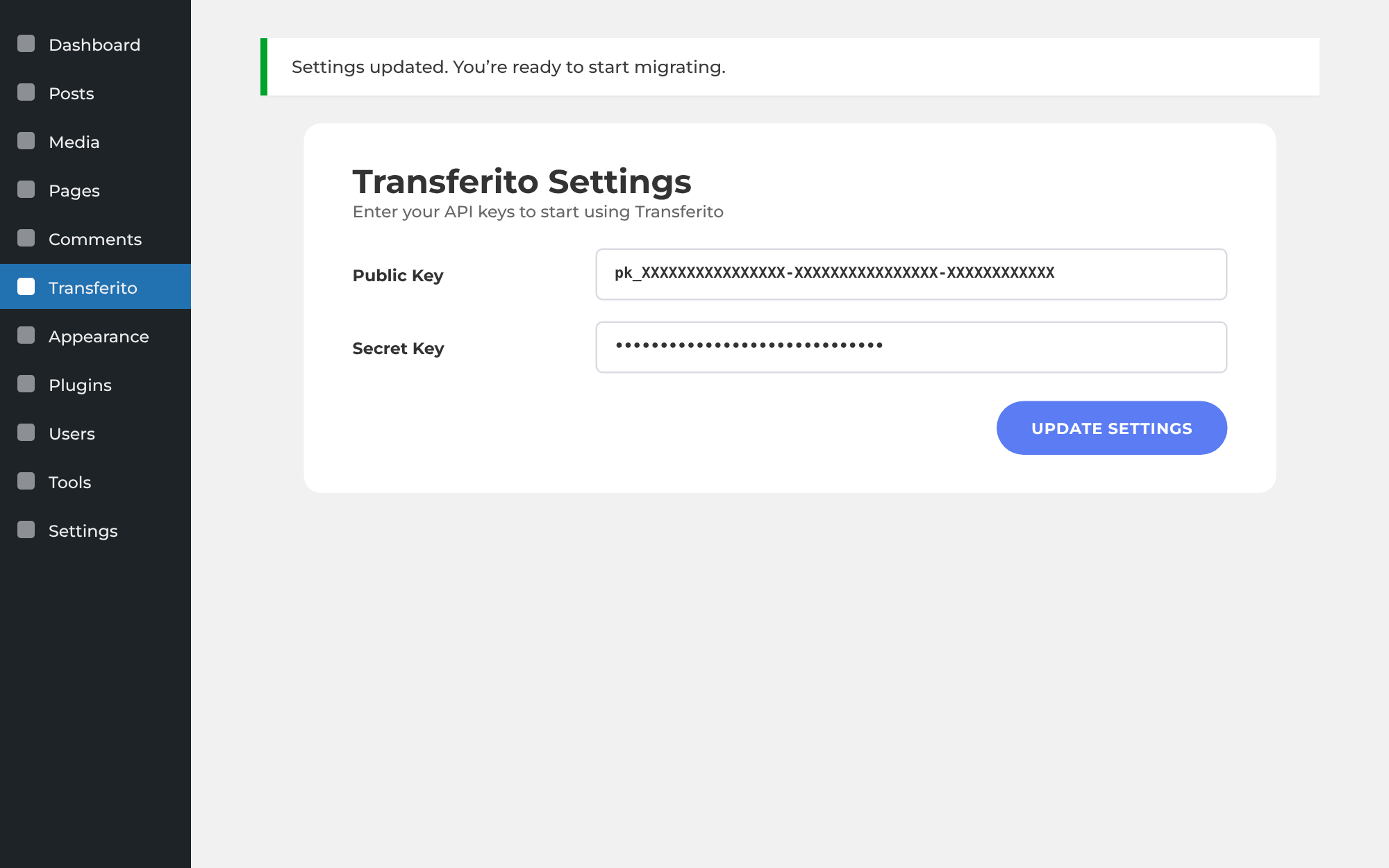
Your API keys connect the Transferito plugin to your account. Copy them from your Transferito dashboard, then add them to the plugin on your WordPress site.
PART 1 · DASHBOARD
Copy your API keys
PART 2 · PLUGIN
Add them to WordPress
What your API keys are
Two keys work together as a pair.
KEY 1
Publishable (public) key
Called Publishable key in the dashboard and Public Key in the plugin.
KEY 2
Secret key
Keep it private. Anyone with it can start migrations on your behalf.
PART 1 In your Transferito dashboard
Find your keys
Log in to your Transferito dashboard and click API keys in the left menu.
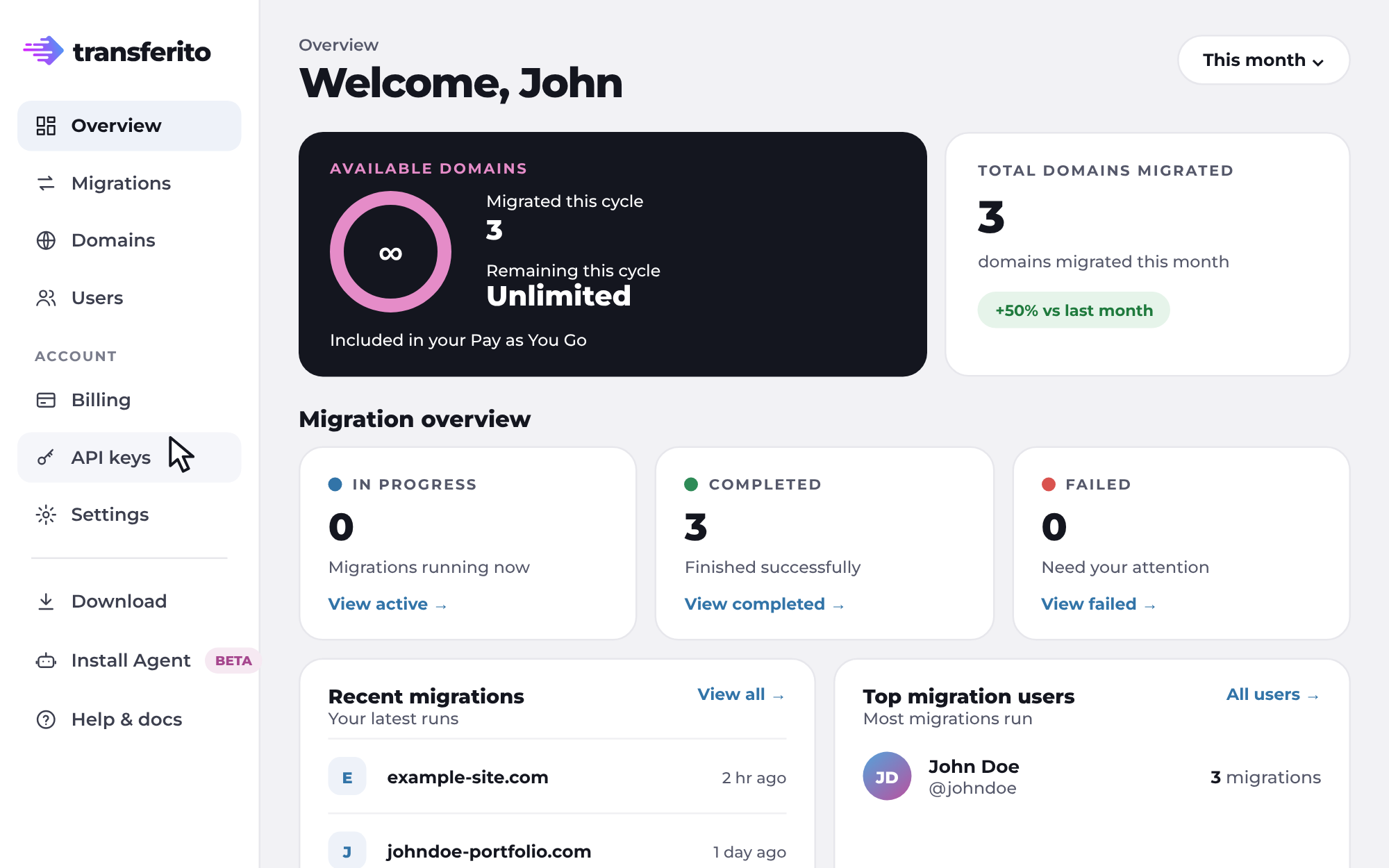
Your API keys page opens. Your publishable key is shown, and your secret key is hidden.
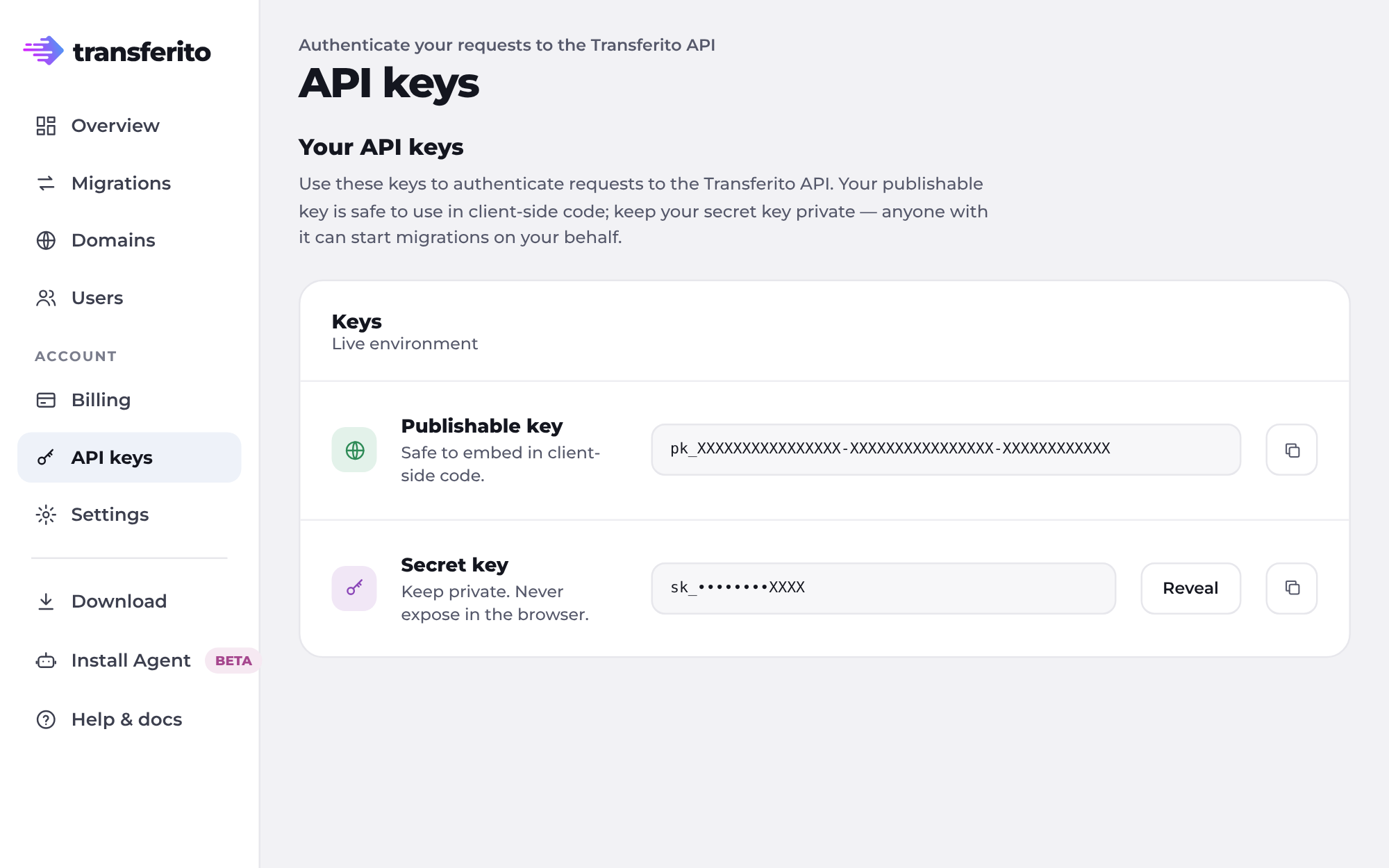
Click Reveal to show your secret key.
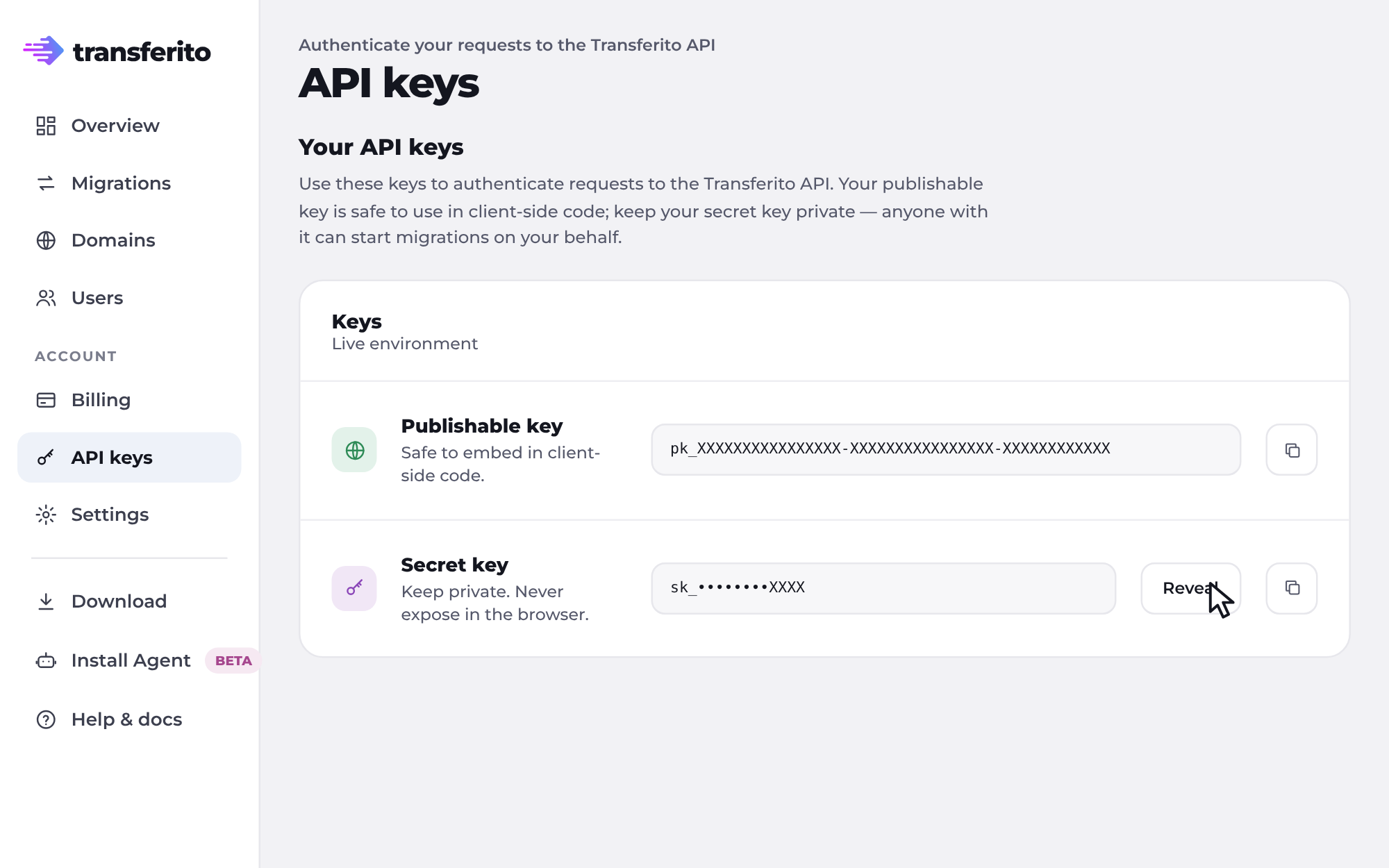
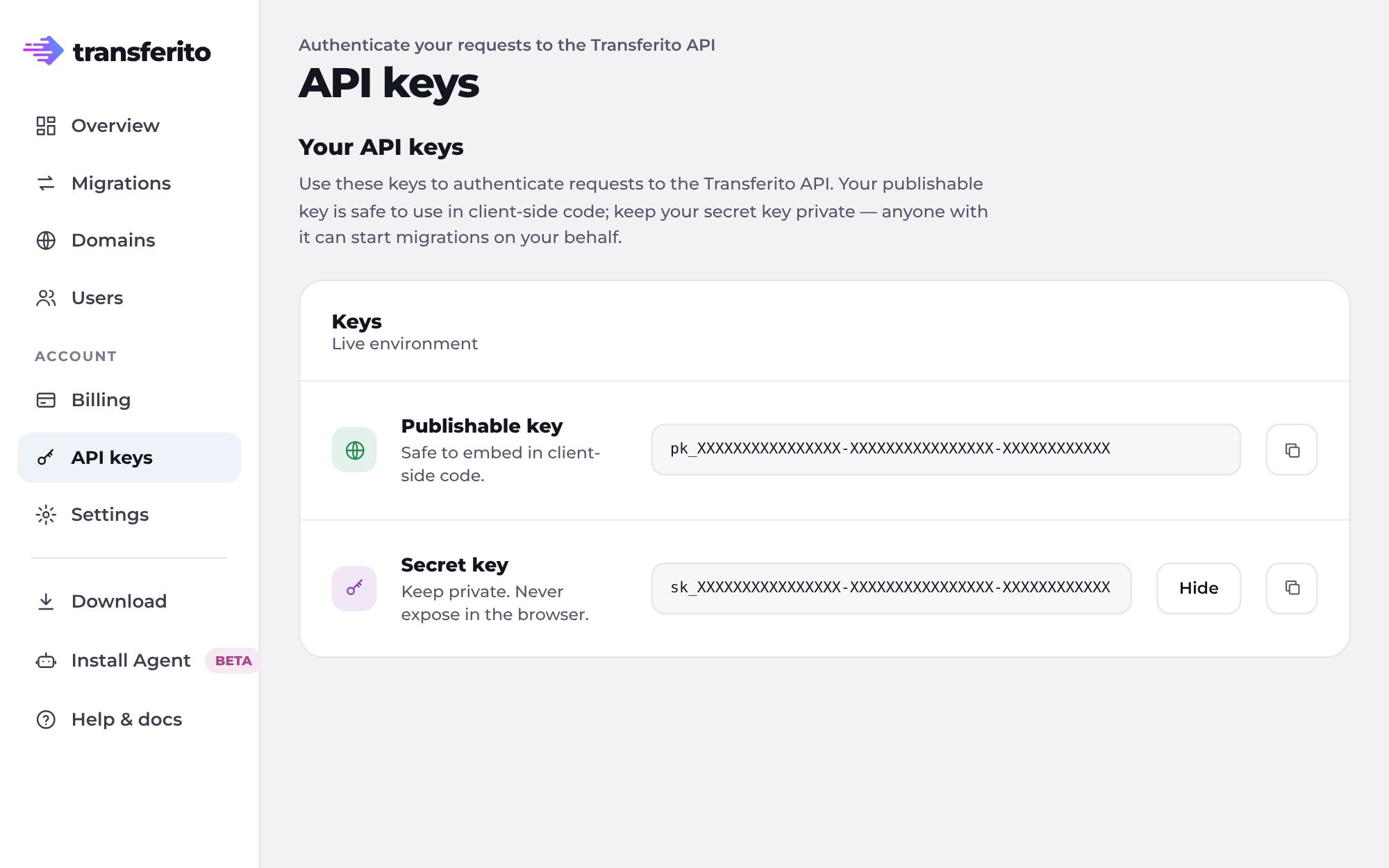
Click the copy button next to each key. A Copied! message confirms the key is on your clipboard.
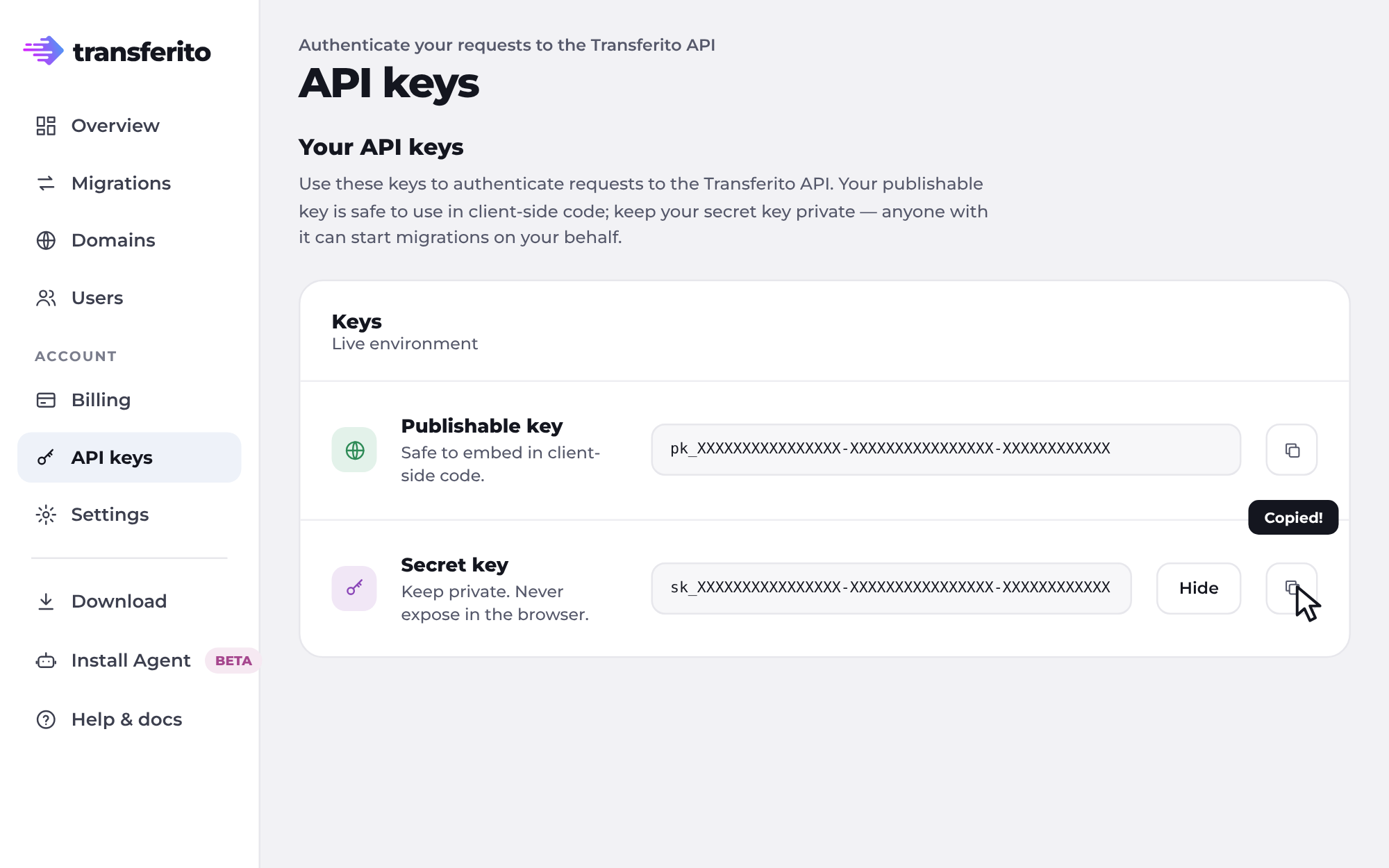
Keep your secret key private. Never share it or put it in client-side code. Click Hide when you’re done.
PART 2 In the WordPress plugin
Add them to the plugin
In your WordPress dashboard, open Transferito. Until you add your keys, you’ll see the You don’t have any API Keys! message.
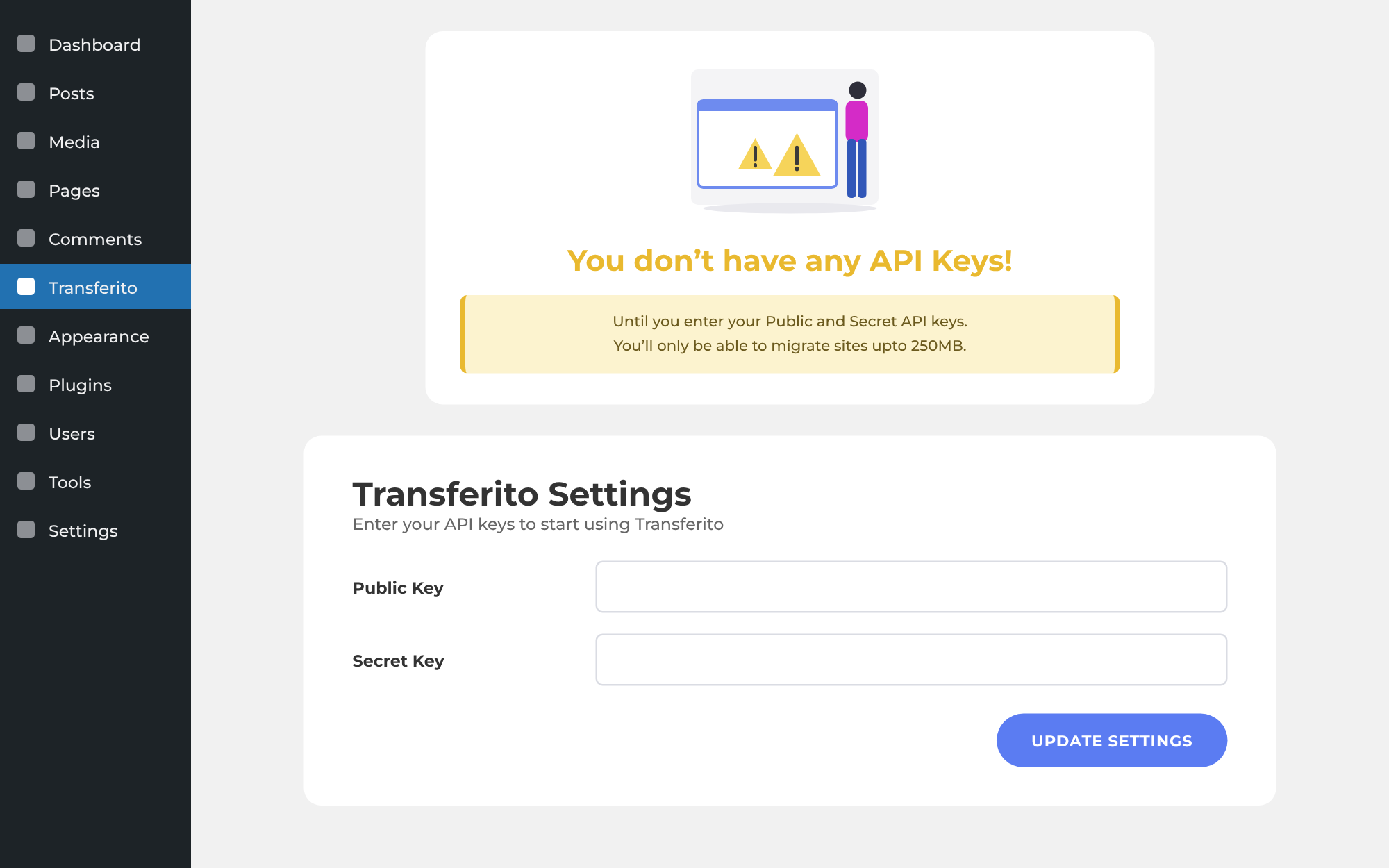
Paste your publishable key into Public Key and your secret key into Secret Key, then click Update Settings.
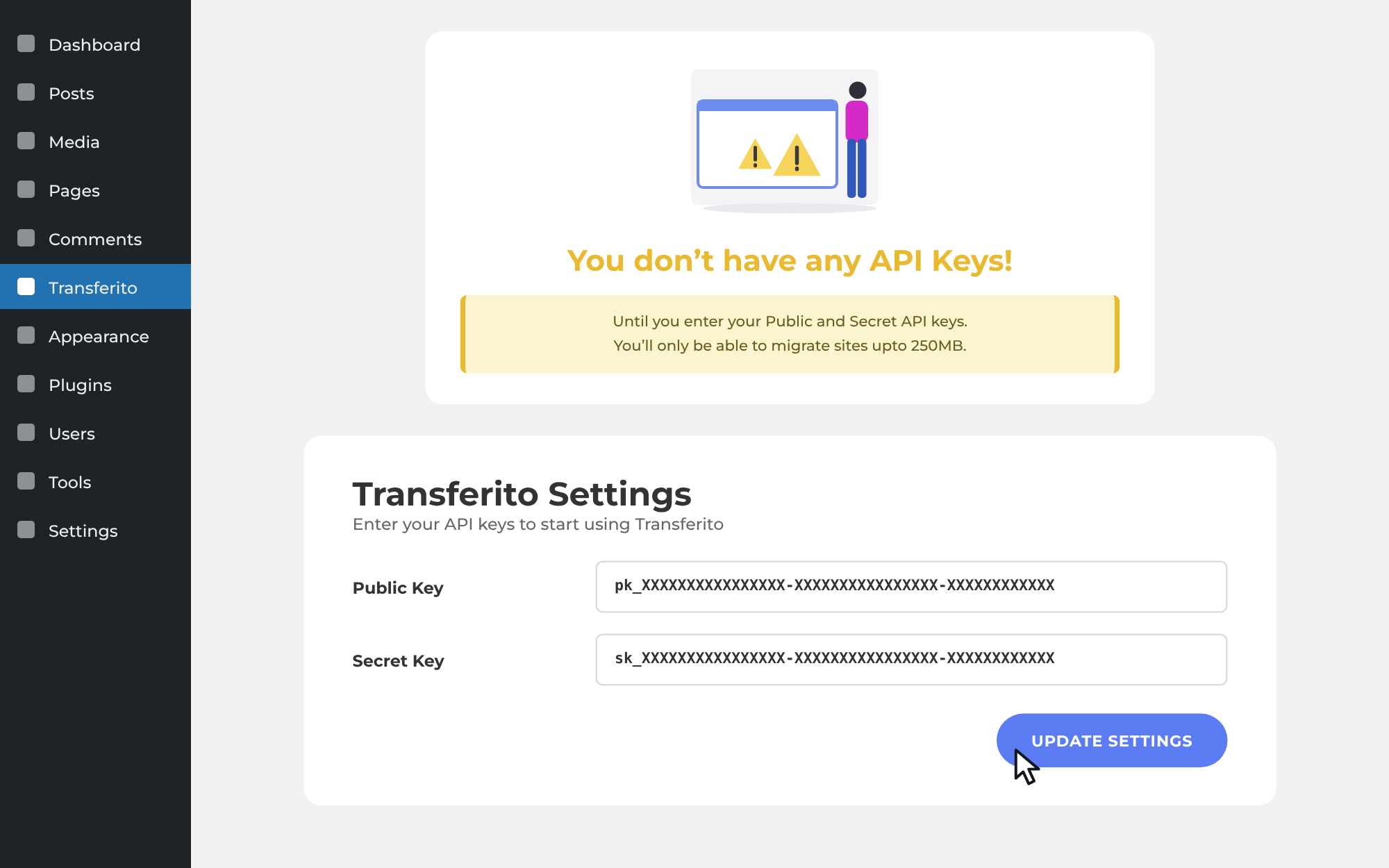
You’re ready to go. Once your keys are saved, the “no API keys” message disappears and you can start using Transferito.