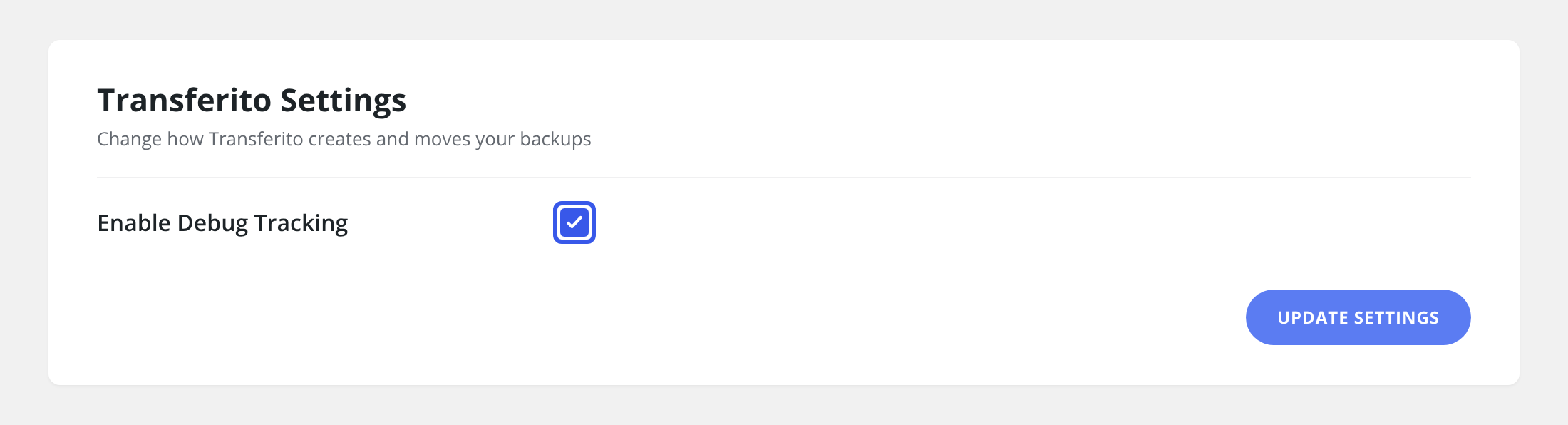
If a migration isn’t going to plan, the quickest way to fix it is to let our support team see what’s happening. Debug tracking lets Transferito’s support staff follow and debug your migration, so they can find where it’s going wrong and help you get it working.
When to turn it on
GOOD TIME
A migration keeps failing
Turn it on, run the migration again, then contact support so they can look at what happened.
GOOD TIME
Support asks you to
Our team may ask you to enable it so they can investigate an issue with your site.
You don’t need it for everyday migrations. Leave debug tracking off unless you’re working with support on a problem, and turn it off again once the issue is fixed.
Turn the setting on
In your WordPress dashboard, open Transferito and go to Settings.
Tick Enable Debug Tracking.
Click Update Settings at the bottom of the page to save it.
Run your migration again, then contact support and let them know debug tracking is on.