When this setting is on, Transferito uploads a copy of your site’s backup to its secure servers for every migration. Your destination site then downloads the backup from there, rather than from your live site.
How it works
Normally, depending on your migration type, Transferito first checks whether your destination site can download the backup straight from your live site. If it can, there’s no need for a middle step. Turning this setting on skips that check and always sends the backup through Transferito’s secure servers.
SETTING OFF
Direct when possible
Transferito checks whether the destination can download from your live site, and only uses its secure servers when it can’t.
SETTING ON
Always via secure servers
Every backup is uploaded to Transferito’s secure servers first, then downloaded by your destination site.
Your backup isn’t kept. Once your destination site has downloaded it, Transferito deletes the backup from its servers, whether the migration succeeds or fails.
Turn the setting on
In your WordPress dashboard, open Transferito and go to Settings.
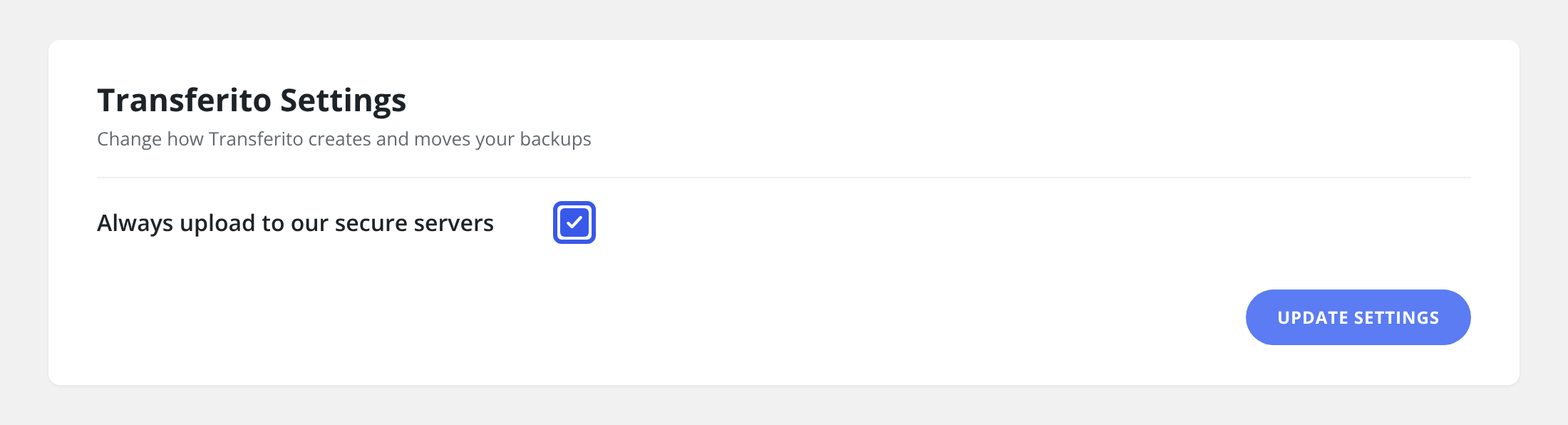
Tick Always upload to our secure servers.
Click Update Settings at the bottom of the page to save it.
When to use it: try this setting if your destination server has trouble downloading the backup directly from your live site, for example because of a firewall or security plugin.